The data protection feature allows users to obtain a copy of all personal data edu-sharing holds about them, complying with the GDPR right of access. Requests are processed asynchronously; users receive an email notification when the export is ready for download.
What the feature does
A user (or an administrator on their behalf) can request a Self-Service GDPR Data Export. edu-sharing collects everything stored about this user, packages it, and makes it available for download. The processing happens in the background – the request is returned immediately and the actual export is compiled by a scheduled job.
What is exported
Depending on the operational configuration (see Part B), the export contains:
|
Element |
Descrip |
|---|
ontains:
|
Element |
Description |
|---|---|
|
Home Directory |
All folders and objects in the user's personal workspace. |
|
Collections |
Both private and shared collections owned by the user. |
|
Shared Objects |
Objects and folders owned by the user and shared with others. |
|
Feedbacks |
Feedback entries submitted by the user. |
|
Comments |
Comments written by the user. |
|
Secure Area |
The corresponding home and shared content in the protected “Safe” area. |
For each object, the archive may contain the following:
-
the metadata as a
.jsonfile, -
the original file (binary content),
-
the thumbnail (
.png).
Additionally, a summary PDF report is generated. It lists the user's master data and account information, for example:
-
First name, last name, username, and all secondary (local) IDs,
-
Email address and role,
-
School / school number, media centers, and group memberships,
-
first and last login,
-
private and shared collections, feedbacks, and comments,
-
a series of information links and the export date.
📃 Output formats
The export is delivered in one of two forms:
|
Format |
Description |
|---|---|
|
Complete ZIP archive |
The full data export (metadata, binary files, previews) including the summary report. |
|
PDF report only |
Only the summary PDF, without the file archive. |
Which form is produced depends on the configuration described in Part B.
How to request an export
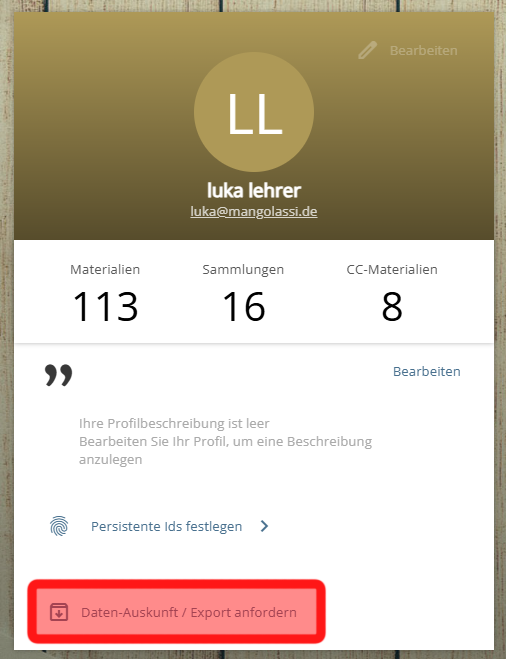
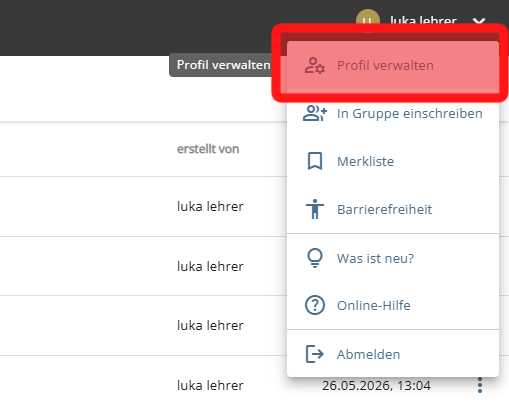
The data export is requested in the user profile.
Open the user profile via the menu at the top left corner of the screen.
Select the option "Request data information / export" here and follow the instructions.