
Folders in edu-sharing can be renamed using the web-application, the edu-sharing App and via WebDAV.
on this page:
Renaming folders in the Workspace
To rename a folder, open the context menu of the corresponding folder.
To do this, press the right mouse button on the corresponding line / cell or use the context menu button 
The context menu opens. Select the "Edit info" option.
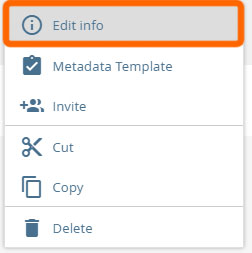
"edit" in the context menu
A new window opens.
Make the desired changes and click on "Submit"
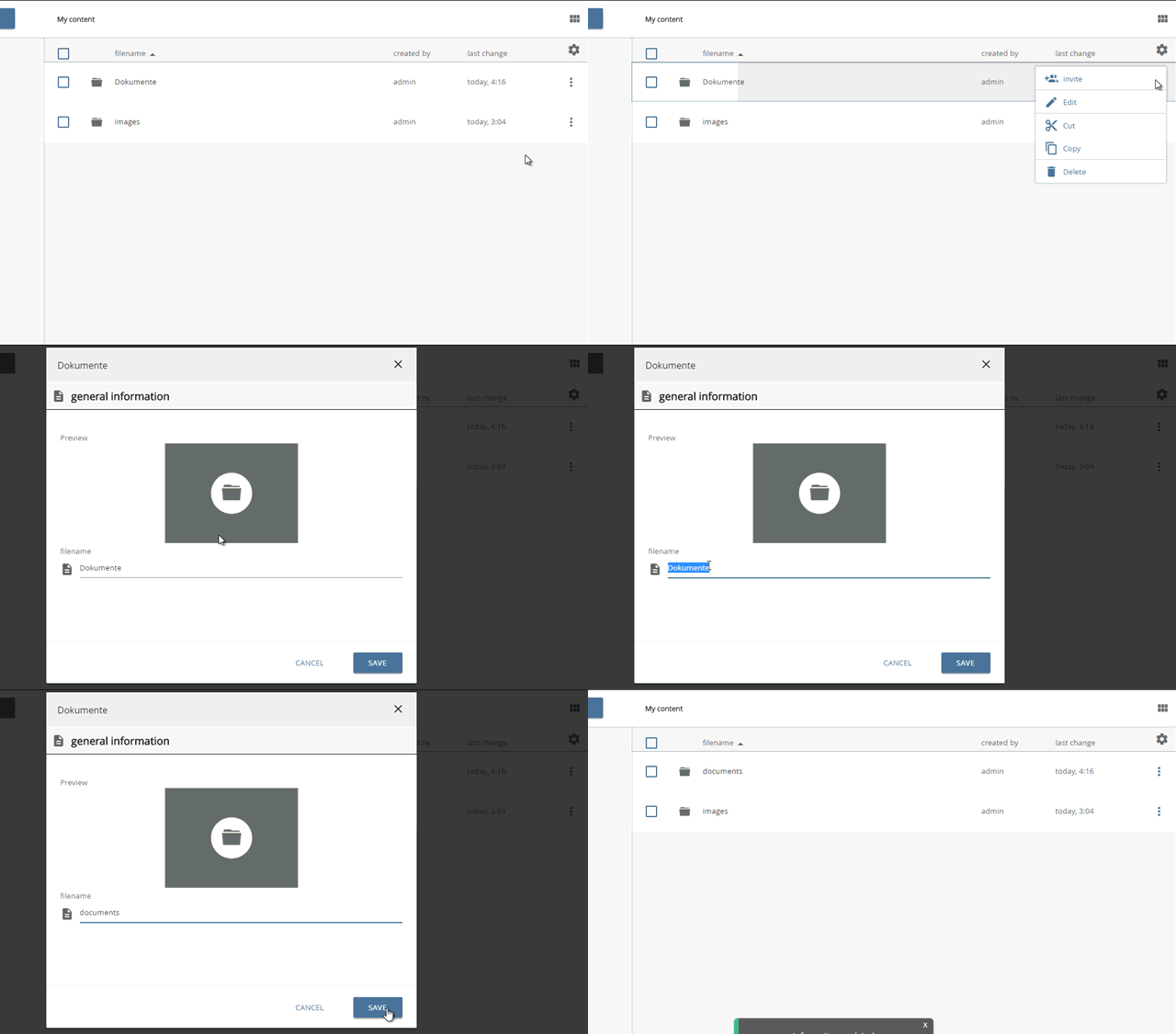
renaming a folder
Renaming folders unsing the edu-sharing app
You can rename folders in the Workspace view of the edu-sharing app.
To do this, open the context menu of the corresponding folder and select the "rename" option.
A new window will open. Enter the new title and tap "OK".
Renaming folders via WebDAV
Connect your computer or mobile device to edu-sharing via WebDAV. Using the Windows explorer, the Mac Finder or an app of your choice navigate to the folder containing the folder you would like to rename. Rename the folder according to your operating system.