
Objects can be commented in edu-sharing. This allows users to actively participate in the quality assurance of content.
Users can edit and delete their own comments.
on this page:
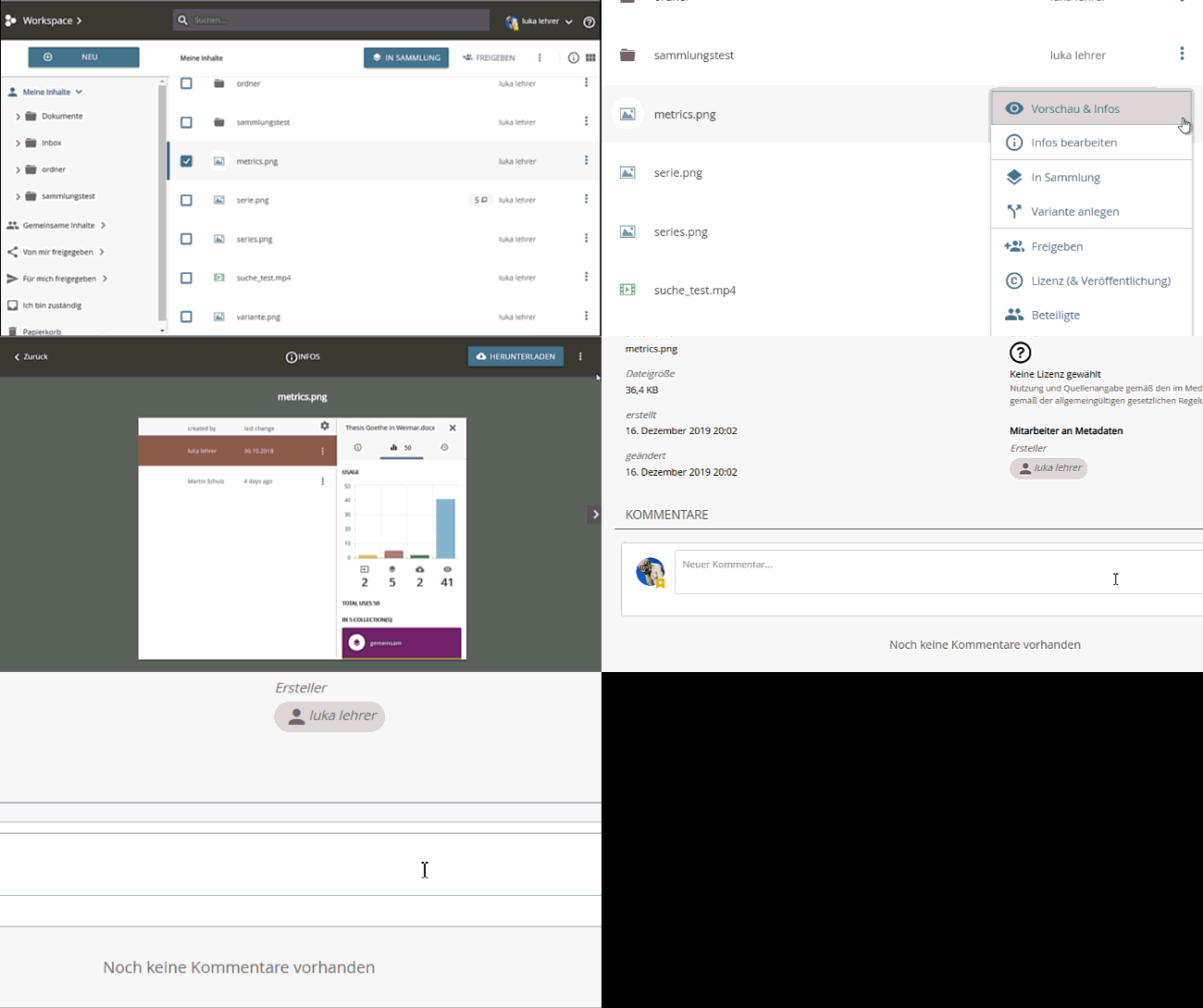
Adding comments to objects
Comments are added to objects in the single view.
-
Open the single view of the object.
-
Scroll to the "INFOS" of the view.
-
Here you will find the field for entering comments.
-
Enter the comment and click on the "arrow" icon to send it.
Editing comments
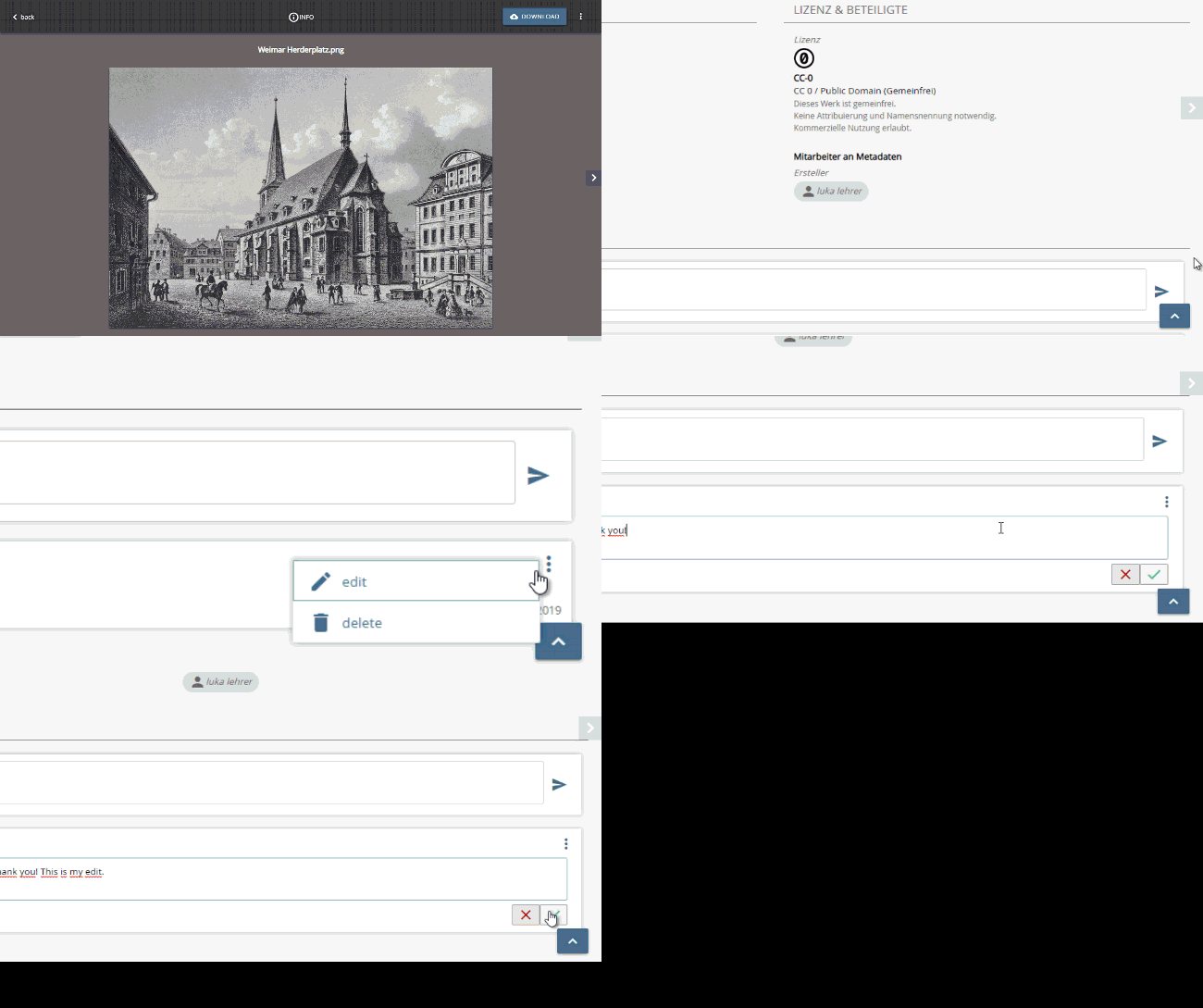
Comments on objects can be edited by the commenter and the system administrator.
Comments are edited in the single view of the object.
-
Open the single view of the object.
-
Scroll to the "INFOS" of the view
-
Here you will find the comments for the object.
-
Click on the "Pen" icon to edit the comment.
-
Save your changes using the "Check" icon.
Deleting Comments
Comments are deleted in the detail view of the object.
-
Open the detail view of the object.
-
Scroll to the "INFOS" section of the view.
-
Here you will find all comments for the object.
-
Use the "garbage can" icon to delete the object.
Restrictions & special features
Serial objects
For serial objects, each sub-object has its own comments.
Inline View (LMS)
Comments cannot currently be displayed in the inline view in LMS systems.